


How-to: Editing your Preferences


Thread Starter
CF Monarch
Joined: Jul 2007
Posts: 5,891
Likes: 29
From: Princeton, NC, USA
 How-to: Editing your Preferences
This is a pictorial How-to on correcting your preferences that may have been lost during the forum reformat.
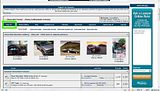
First, if you want to change your options, go to your User CP or User Control Panel. The location of the link is highlighted in green in the screenshot below.
(click to enlarge)
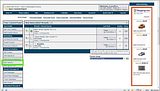
When you arrive in the User CP, click Edit Options. The link is highlighted by the green square in the screenshot below.
(click to enlarge)
Below is an explaination of each option labeled with a number.
(click to enlarge)
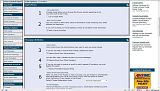
# 1
Invisible mode-
If you select invisible mode, you will not be factored into any currently veiwing lists or be added to the "Online". Basically you will be online, without anyone knowing.
# 2
V-Card download-
When activated, other members can download your V-card, which contains the contact information on your profile.
#3
Receive E-mail from Admins-
Select this to enable the administrators of the site to E-mail you. I highly recommend this to be enabled.
#4
Receive E-mail from Other Members-
Select this to enable other members to send you and E-mail through the site.
#5
Receive Friendship Request E-mail-
If you would like to receive an E-mail notification when you receive a friend request.
#6
Default Thread Subscription Mode-
Thread subscriptions are notifications that tell you when someone replies to a thread you have posted in. These Notifications can be a listing of the threads in the subscriptions area on the mainpage of the User CP (which is very useful by the way) or e-mail notifications.
There are five options in this dropbox. "Do Not Subscribe" will disable the Subscriptions altogether, making the subscriptions area on the User CP mainpage blank and useless. "No E-mail Notification" will leave the subscriptions area up, but will not notify you any other way. Instant, Daily, and Weekly E-mail notifications are also availible.
#7
WHERE'D #7 GO?!?!
(click to enlarge)
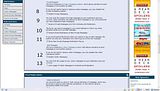
#8
Enable Private Messaging-
Please leave this function enabled. Disabling Private messaging will leave other members with no way of contacting you.
#9
Receive PMs from only contacts and Moderators-
Limit receipt of private messages to Contacts and members of staff only. You can choose this if you wish, but its better to leave it so all other members can contact you.
#10
Receive E-mail notification of new Private Messages-
Select this if you would like to be notified automatically by the site when you receive a private message.
#11
Pop-up notification of PMs-
Clicking this checkbox will give you a pop-up window that notifies you of a new Private Message.
I highly recommend this feature because it allows you to notice the arrival of a new private message quicker than noticing it yourself.
#12
Visitor Messaging-
Enabling this feature allows other members to leave you a publicly veiwable comment on your profile.
#13
Limit Visitor Messaging-
Limit Visitor messaging to contacts and members of staff only
(click to enlarge)
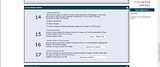
#14
Visible Post Elements-
Allows you to hide the avatars, signatures, and images in posts so page loads will be faster.
#15
Thread Display Mode-
Allows you to veiw threads in two modes (Oldest to Newest) and (Newest to Oldest).
#16
Show Number of Posts Per Page-
Choose how many posts per page of a thread you can veiw (up to 40). Choose wisely, too few posts per page will cause you to have to veiw multiple pages of posts. Too many may slow down your page loads.
#17
Thread Age Cutoff-
This feature hides all posts over a certain age. I HIGHLY recommend this setting to be placed on "1 Year" or "Show All Posts"
(click to enlarge)
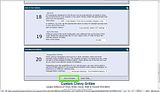
#18
Time Zone-
Set your time zone so that post times will be correct.
DST settings can be set to automatic so that you will not have to reset your time twice a year. In some areas this may not apply, so DST settings should be set to "Off"
#19
Start of the Week-
Set the day your week starts according your your culture or religion.
#20
Message Editor Interface-
Changes the text input mode to unlock smileys, fonts, font sizes, and other text formatting options that you can use when posting.
CLICK THE SAVE OPTIONS BUTTON HIGHLIGHTED BY THE GREEN BOX IN THE SCREENSHOT ABOVE TO SAVE YOUR CHANGES!
First, if you want to change your options, go to your User CP or User Control Panel. The location of the link is highlighted in green in the screenshot below.
(click to enlarge)

When you arrive in the User CP, click Edit Options. The link is highlighted by the green square in the screenshot below.
(click to enlarge)

Below is an explaination of each option labeled with a number.
(click to enlarge)

# 1
Invisible mode-
If you select invisible mode, you will not be factored into any currently veiwing lists or be added to the "Online". Basically you will be online, without anyone knowing.
# 2
V-Card download-
When activated, other members can download your V-card, which contains the contact information on your profile.
#3
Receive E-mail from Admins-
Select this to enable the administrators of the site to E-mail you. I highly recommend this to be enabled.
#4
Receive E-mail from Other Members-
Select this to enable other members to send you and E-mail through the site.
#5
Receive Friendship Request E-mail-
If you would like to receive an E-mail notification when you receive a friend request.
#6
Default Thread Subscription Mode-
Thread subscriptions are notifications that tell you when someone replies to a thread you have posted in. These Notifications can be a listing of the threads in the subscriptions area on the mainpage of the User CP (which is very useful by the way) or e-mail notifications.
There are five options in this dropbox. "Do Not Subscribe" will disable the Subscriptions altogether, making the subscriptions area on the User CP mainpage blank and useless. "No E-mail Notification" will leave the subscriptions area up, but will not notify you any other way. Instant, Daily, and Weekly E-mail notifications are also availible.
#7
WHERE'D #7 GO?!?!
(click to enlarge)

#8
Enable Private Messaging-
Please leave this function enabled. Disabling Private messaging will leave other members with no way of contacting you.
#9
Receive PMs from only contacts and Moderators-
Limit receipt of private messages to Contacts and members of staff only. You can choose this if you wish, but its better to leave it so all other members can contact you.
#10
Receive E-mail notification of new Private Messages-
Select this if you would like to be notified automatically by the site when you receive a private message.
#11
Pop-up notification of PMs-
Clicking this checkbox will give you a pop-up window that notifies you of a new Private Message.
I highly recommend this feature because it allows you to notice the arrival of a new private message quicker than noticing it yourself.
#12
Visitor Messaging-
Enabling this feature allows other members to leave you a publicly veiwable comment on your profile.
#13
Limit Visitor Messaging-
Limit Visitor messaging to contacts and members of staff only
(click to enlarge)

#14
Visible Post Elements-
Allows you to hide the avatars, signatures, and images in posts so page loads will be faster.
#15
Thread Display Mode-
Allows you to veiw threads in two modes (Oldest to Newest) and (Newest to Oldest).
#16
Show Number of Posts Per Page-
Choose how many posts per page of a thread you can veiw (up to 40). Choose wisely, too few posts per page will cause you to have to veiw multiple pages of posts. Too many may slow down your page loads.
#17
Thread Age Cutoff-
This feature hides all posts over a certain age. I HIGHLY recommend this setting to be placed on "1 Year" or "Show All Posts"
(click to enlarge)

#18
Time Zone-
Set your time zone so that post times will be correct.
DST settings can be set to automatic so that you will not have to reset your time twice a year. In some areas this may not apply, so DST settings should be set to "Off"
#19
Start of the Week-
Set the day your week starts according your your culture or religion.
#20
Message Editor Interface-
Changes the text input mode to unlock smileys, fonts, font sizes, and other text formatting options that you can use when posting.
CLICK THE SAVE OPTIONS BUTTON HIGHLIGHTED BY THE GREEN BOX IN THE SCREENSHOT ABOVE TO SAVE YOUR CHANGES!

Thread
Thread Starter
Forum
Replies
Last Post
Mille Racer 69
Silverado, Sierra & Fullsize Pick-ups
0
Jun 9, 2011 11:50 PM
harascho
Tahoe & Suburban
0
May 10, 2009 8:26 AM
toydriver00
Silverado, Sierra & Fullsize Pick-ups
0
Oct 7, 2007 7:01 AM
biglg
Tahoe & Suburban
35
May 15, 2007 4:21 PM
